 fusen
fusenLook up Japanese words in Librera
Librera's text menu has a row of dictionary buttons, and Fusen can be one of them. Add it once, and any line you select in a Japanese book opens in Fusen's popup, on top of the page, ready for you to tap the word you want.
Tested with Librera FD-JS 10.0.7 and Fusen 1.0.1 on Android 16. Updated .
Before you start
- Install Fusen and, when it asks, download the dictionary (JMdict, about 11 MB). After that, lookups work offline.
- Install Librera Reader and open a Japanese EPUB in it. These steps were tested with Librera FD, the build on F-Droid.
Add Fusen to Librera once
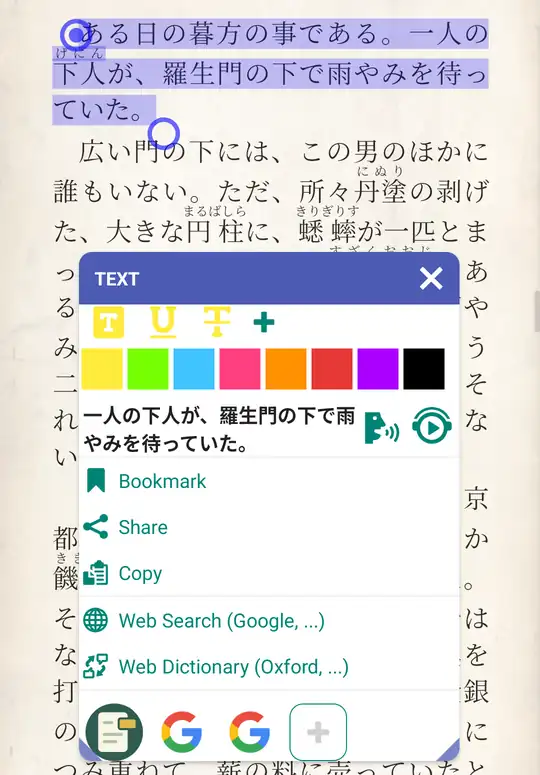
In a book, long-press a word. Librera selects the whole line and opens its TEXT menu.
Scroll the menu down to the row of round icons at the bottom and tap +.
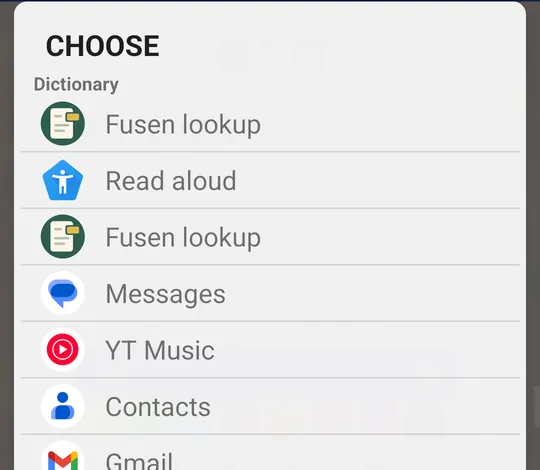
Under Choose › Dictionary, tap Fusen lookup. (It can be listed twice; take the first.) Fusen's icon is now the first one in that row.
Look up a word
Long-press for one line, or long-press and drag for several lines, to cover the whole sentence.
Check the text in the menu's box. Librera copies whole lines, and it puts the furigana in too (下人 げにん), so tap the box and delete what you don't want: the rest of the line, the readings and any spaces where a line broke.
Then scroll down and tap the Fusen icon in the bottom row.
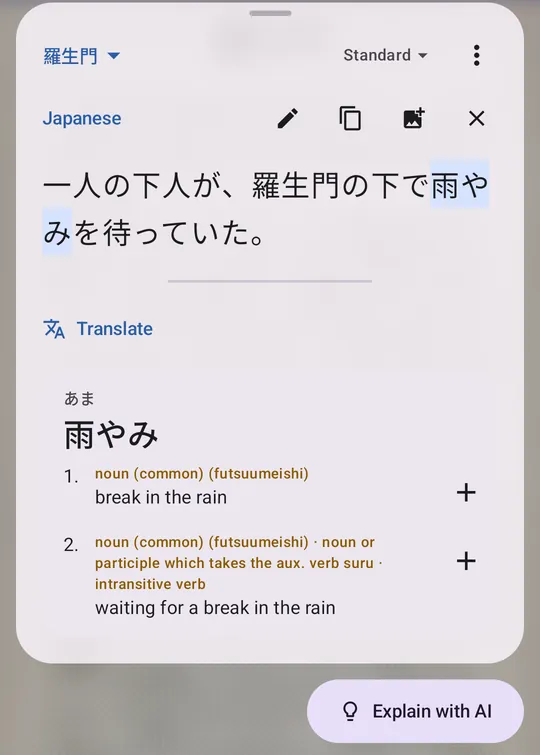
Fusen's popup opens over the book with the text from the box. Tap any word in it to see its dictionary entry; conjugated verbs and adjectives are traced back to their dictionary form.
Tap + beside a meaning to save the word to your notebook, with this sentence. Close the popup (× or Back) and you are back on the same page.
Vertical books (縦書き)
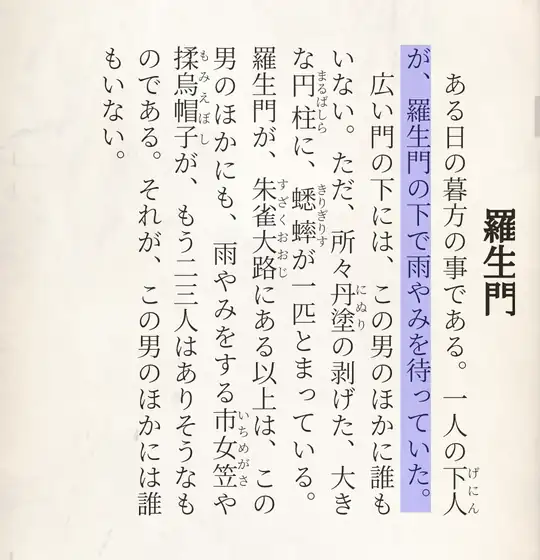
Librera lays out vertical Japanese books properly. A long-press selects one whole column; long-press and drag to take in more columns. Selections across columns can come out uneven, so check the box before you tap Fusen.
Good to know
- Send a sentence, not a line. Fusen saves whatever you sent as the word's sentence, so a trimmed sentence makes a better example than a line cut mid-way.
- One collection per book. Tap the collection name at the top left of the popup (Inbox at first), choose New collection… and name it after the book. Words you save go there, and the popup stays on that collection until you change it.
- Share and Copy work too. Share, then Format: Quote, then Fusen lookup sends the selection without the box. Copy works with Fusen's floating Lookup button: turn it on with Settings → Behavior → Floating button, copy, then tap the button.
- Translate and explain. The popup's Translate translates the sentence, and Explain with AI explains the word in this context. Both use Fusen AI, with free monthly credits on a free Fusen account; the dictionary itself never uses credits.