 fusen
fusenLook up Japanese words on 小説家になろう and カクヨム
Web novels on Shōsetsuka ni Narō (syosetu.com) and Kakuyomu read fine in Chrome on your phone, and Chrome can hand any text you select to Fusen. Select a sentence, send it, and Fusen's popup opens over the chapter, ready for you to tap the word you want.
Tested with Chrome 133 and Fusen 1.0.1 on Android 16, on chapter pages of both sites. Updated .
Before you start
- Install Fusen and, when it asks, download the dictionary (JMdict, about 11 MB). After that, lookups work offline.
- Open a chapter on 小説家になろう (ncode.syosetu.com) or カクヨム in Chrome. You don't need an account on either site, and there is nothing to set up in Chrome.
The steps are the same on both sites. The screenshots show Akutagawa's 『羅生門』 in カクヨム近代文学館 on Kakuyomu.
Look up a word
Long-press the first character of the sentence. Chrome often selects a single character in Japanese, so drag the end handle to the end of the sentence (and the start handle back, if needed).
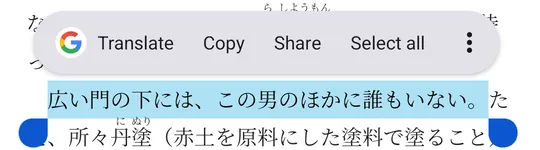
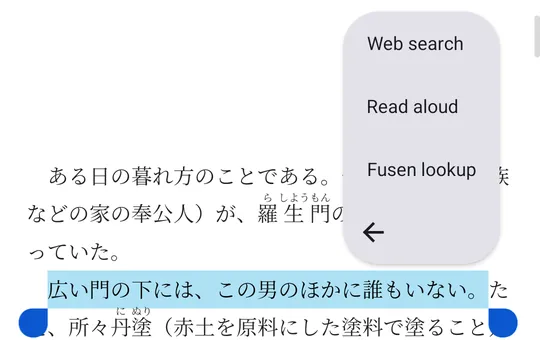
In the bar above the selection, tap ⋮, then Fusen lookup.
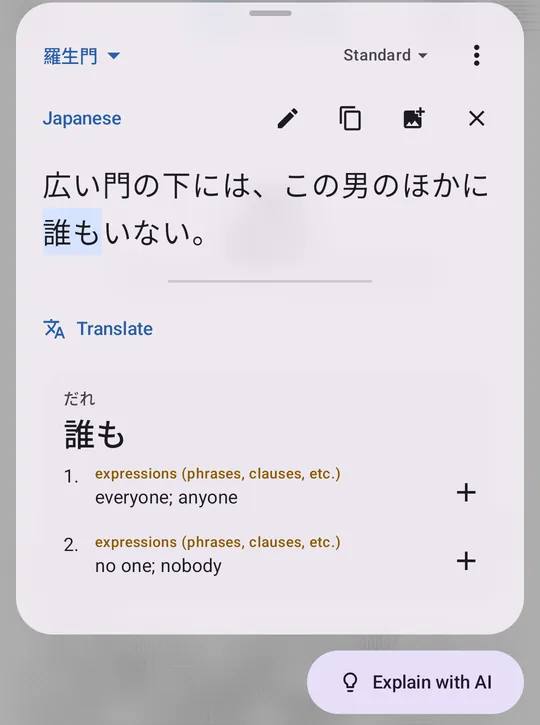
Fusen's popup opens over the chapter with the sentence you selected. Tap any word in it to see its dictionary entry; conjugated verbs and adjectives are traced back to their dictionary form.
Tap + beside a meaning to save the word to your notebook, with this sentence. Close the popup (× or Back) and you are back in Chrome where you left off.
Good to know
- Use ⋮, not Share. Share › Fusen lookup works too, but Chrome wraps shared text in quotation marks ("…"), which then show up in the popup and in the sentence Fusen saves. ⋮ › Fusen lookup sends the text as it is.
- Select the sentence, not just the word. Fusen saves whatever you sent as the word's sentence. Sending the whole sentence and tapping the word in the popup gives you both a correct lookup and a useful example.
- One collection per novel. Tap the collection name at the top left of the popup (Inbox at first), choose New collection… and name it after the novel. Words you save go there, and the popup stays on that collection until you change it. In the Collections tab, the collection's menu has Title & terms: add the novel's title and its characters' names, and Fusen AI translations keep the names consistent.
- Copy works too. Chrome's Copy works with Fusen's floating Lookup button: turn it on with Settings → Behavior → Floating button, copy, then tap the button.
- Translate and explain. The popup's Translate translates the sentence, and Explain with AI explains the word in this context. Both use Fusen AI, with free monthly credits on a free Fusen account; the dictionary itself never uses credits.