 fusen
fusenLook up Japanese words in KOReader
KOReader on Android can share the text you select with other apps. Select a sentence in a Japanese book, share it to Fusen, and the popup opens over the page with the sentence, ready for you to tap the word you want.
Tested with KOReader v2026.07.1 and Fusen 1.0.1 on Android 16. Updated .
Before you start
- Install Fusen and, when it asks, download the dictionary (JMdict, about 11 MB). After that, lookups work offline.
- Install KOReader for Android and open a Japanese EPUB in it.
There is nothing to set up in KOReader: Share Text works as soon as Fusen is installed.
Look up a word
Hold your finger on the first word of the sentence, then drag to its end without lifting. A short long-press on a single word opens KOReader's own dictionary instead.
KOReader can leave out the first character, so start the drag just before it (on the 。 of the sentence before, for example).
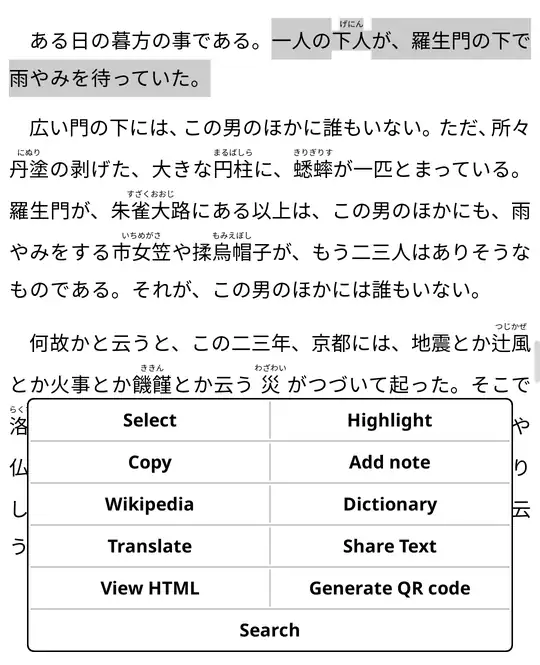
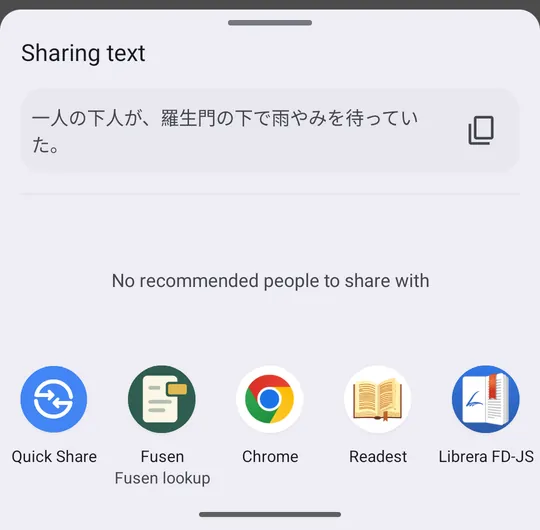
In the menu that opens, tap Share Text. Android's share sheet shows the text you are sending: check that the whole sentence is there, then tap Fusen (Fusen lookup).
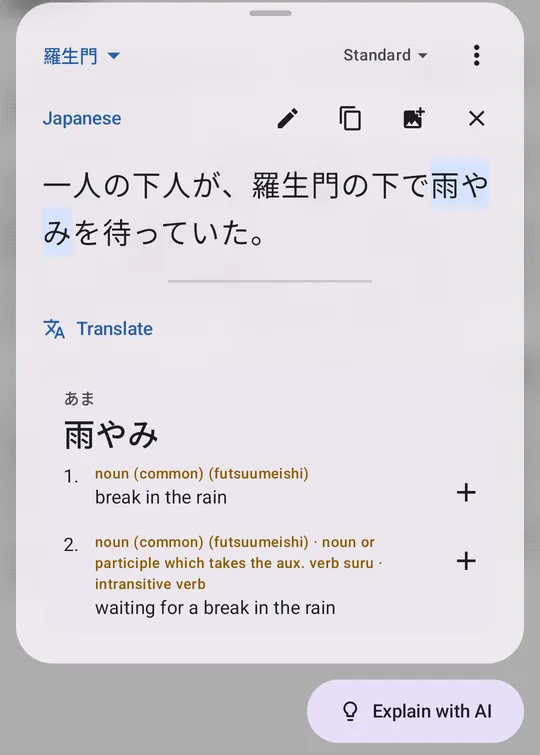
Fusen's popup opens over the book with the sentence. Tap any word in it to see its dictionary entry; conjugated verbs and adjectives are traced back to their dictionary form.
Tap + beside a meaning to save the word to your notebook, with this sentence. Close the popup (× or Back) and you are back on the same page.
Why not KOReader's external dictionary?
KOReader has a Use external dictionary setting, but it only lists dictionary apps it knows by name (ColorDict, Aard2, GoldenDict…) and greys out the ones that aren't installed. Fusen isn't on that list, so it can't be picked there, and a plain long-press keeps opening KOReader's own dictionary. Share Text is the way in.
Vertical books (縦書き)
KOReader shows vertical Japanese EPUBs as horizontal text. If you want to read 縦書き as it was laid out, use Readest or Librera; both display and select vertical text and work with Fusen.
Good to know
- Select the sentence, not just the word. Fusen saves whatever you sent as the word's sentence. Sending the whole sentence and tapping the word in the popup gives you both a correct lookup and a useful example.
- One collection per book. Tap the collection name at the top left of the popup (Inbox at first), choose New collection… and name it after the book. Words you save go there, and the popup stays on that collection until you change it.
- Copy works too. Copy in the same menu works with Fusen's floating Lookup button: turn it on with Settings → Behavior → Floating button, copy, then tap the button.
- Translate and explain. The popup's Translate translates the sentence, and Explain with AI explains the word in this context. Both use Fusen AI, with free monthly credits on a free Fusen account; the dictionary itself never uses credits.