 fusen
fusenLearn Japanese by reading it
Read real Japanese books and manga, look up what stops you, and let the words you meet again and again stick. This is a starter setup for doing that on an Android phone: what to read first, which reading app to use, and how to look words up without losing the story.
Tested with Fusen 1.0.3 on Android 14. Updated .
What immersion reading is
Immersion reading means learning Japanese from things written for Japanese readers: novels, manga, web fiction. Instead of working through a textbook's dialogues, you read something you actually want to finish and look up whatever stops you. The words you learn are the ones real writers use, in the sentences they use them in.
It works because the common words keep coming back. A word you looked up in chapter one turns up again in chapter three, and again in the next book. Each time it is a little easier, until one day you read past it without noticing.
This page is about the practical side on an Android phone. For the method itself, how much to read and how it fits with listening and grammar, read Refold's roadmap or TheMoeWay's Japanese guide.
When to start
Sooner than you think. You need the kana (hiragana and katakana), a few hundred common words and the basics of grammar: particles, how verbs and adjectives change, the polite and plain forms. You don't need to know the kanji first; the dictionary gives you the reading of every word you look up.
Be ready for the first weeks to be slow. At first nearly every sentence needs a lookup, and a page can take ten minutes. That is normal, and it gets better faster than it feels: the first hundred pages of any book are the hardest, because that is where you meet its vocabulary.
What to read first
Pick something easy enough to keep going and interesting enough to want to. Roughly from easiest to hardest:
- Graded readers. Short books written for learners, sorted by level. NPO Tadoku's free books are a good start, from a few lines a page upward.
- Manga with furigana. Manga for younger readers prints the reading beside every kanji, and the pictures carry the story when the words don't. Slice-of-life manga uses everyday language; fantasy and history bring their own vocabulary.
- Web novels. 小説家になろう and カクヨム have thousands of free novels, many in plain modern Japanese with short chapters. See reading Syosetu and Kakuyomu with Fusen.
- Light novels. Longer, with more narration, but in modern language and often with furigana on harder kanji.
- Classics from Aozora Bunko. 青空文庫 has Natsume Sōseki, Akutagawa and many others for free. Leave them for later: their language is a century old, with spellings and words you won't meet in modern books.
Set up your reader
Fusen isn't a reading app. It is a popup dictionary that opens over the reading app you already use, so pick a reader for what you read, then follow its guide to connect Fusen once.
| What you read | Reading app |
|---|---|
| EPUB books | Readest, ReadEra, Moon+ Reader |
| PDF and comic files with text | Librera, KOReader |
| Web novels | Chrome on 小説家になろう and カクヨム |
| Vertical books (縦書き) | Readest, ReadEra, Librera (Moon+ Reader and KOReader lay them out horizontally) |
| Manga, in any app | Fusen's Lookup button, then Read the screen |
Manga pages are pictures, so there is no text to select. Turn on the floating Lookup button in Fusen (Settings → Behavior → Floating button), open the page in any app, tap the button and choose Read the screen. Fusen AI reads the page and you step through its speech bubbles, tapping words as in a book. Reading a page uses Fusen AI credits; looking words up in it doesn't.
Look words up without losing the story
Once your reader is connected, a lookup takes a couple of seconds and you never leave the page.
Select the sentence, not just the word, and choose Fusen lookup in the selection menu. (Each reader's guide shows where it is.)
Fusen's popup opens over the book with your sentence. Tap the word you don't know, and its dictionary entry opens below, with the reading over any kanji. Conjugated forms are traced back: しゃがみながら finds しゃがむ, and 眺めていた finds 眺める.
Want the whole sentence in your language? Tap Translate, or turn on Translate by default in the popup's ⋮ menu to have every passage translated as the popup opens.
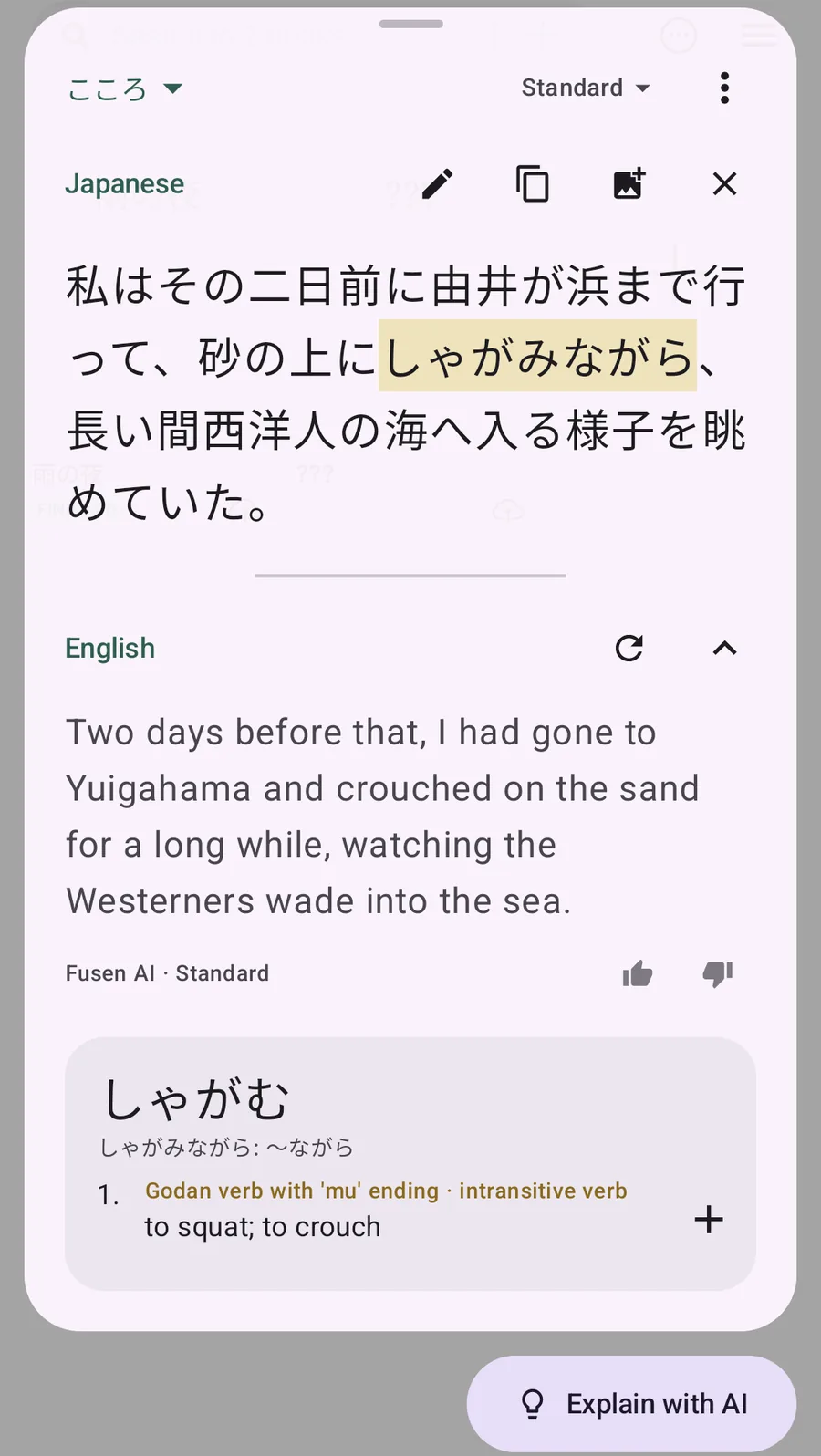
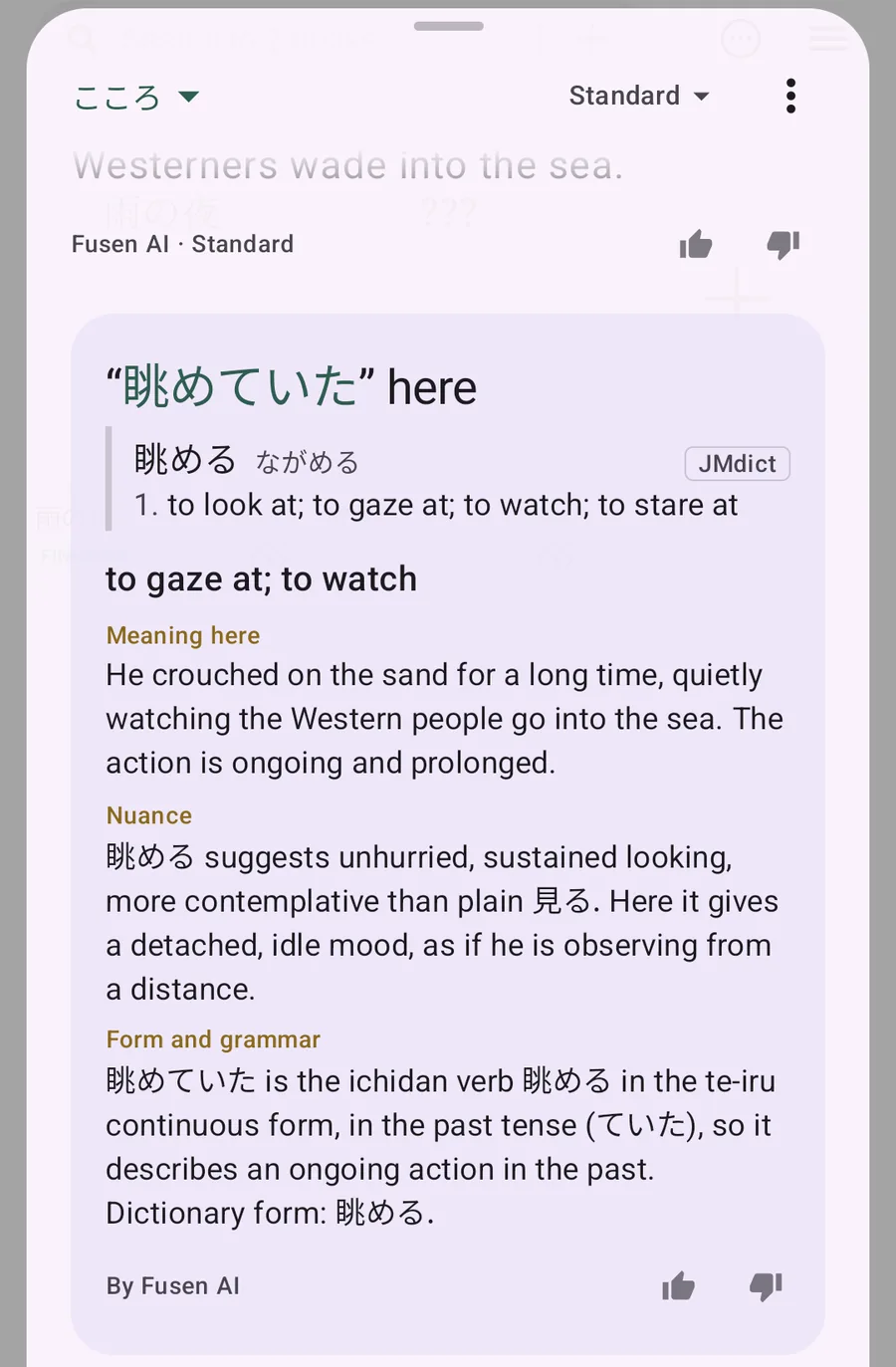
When the dictionary isn't enough (a word with many senses, a set phrase, a pun), tap Explain with AI. Fusen AI explains what the word means in this sentence and why the writer chose it.
One tip: don't look up every word. If you can follow what is happening without it, read on. The words that matter will come back, and you can look them up then.
Save it, and know it when it comes back
This is where Fusen differs from a plain dictionary. Tap + beside the meaning you need, and Fusen saves the word together with the sentence you met it in. Make one collection for each book (tap the collection name at the top of the popup, then New collection…), so every word also remembers where it came from.
Later, in this book or another, you look up a word you saved before. The popup marks it Saved 2×: you have met it twice already.
Say you saved 眺める in 『吾輩は猫である』, where the master gazes at the cat, and in 『羅生門』, where the servant watches the rain. Now it turns up in 『こころ』.
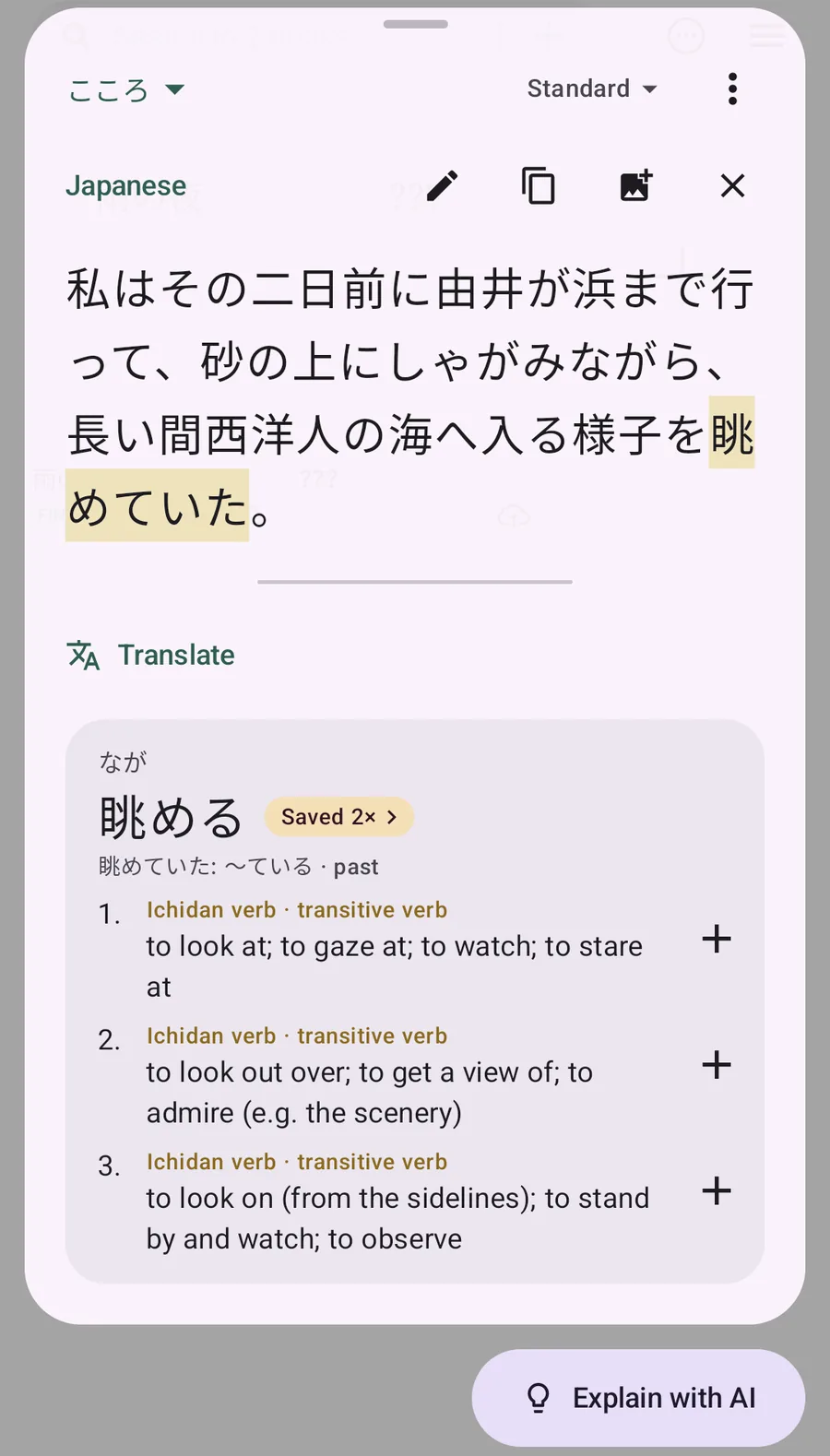
Tap the mark. Fusen lists every sentence you saved the word from, with its book. Tap one to read the whole passage again.
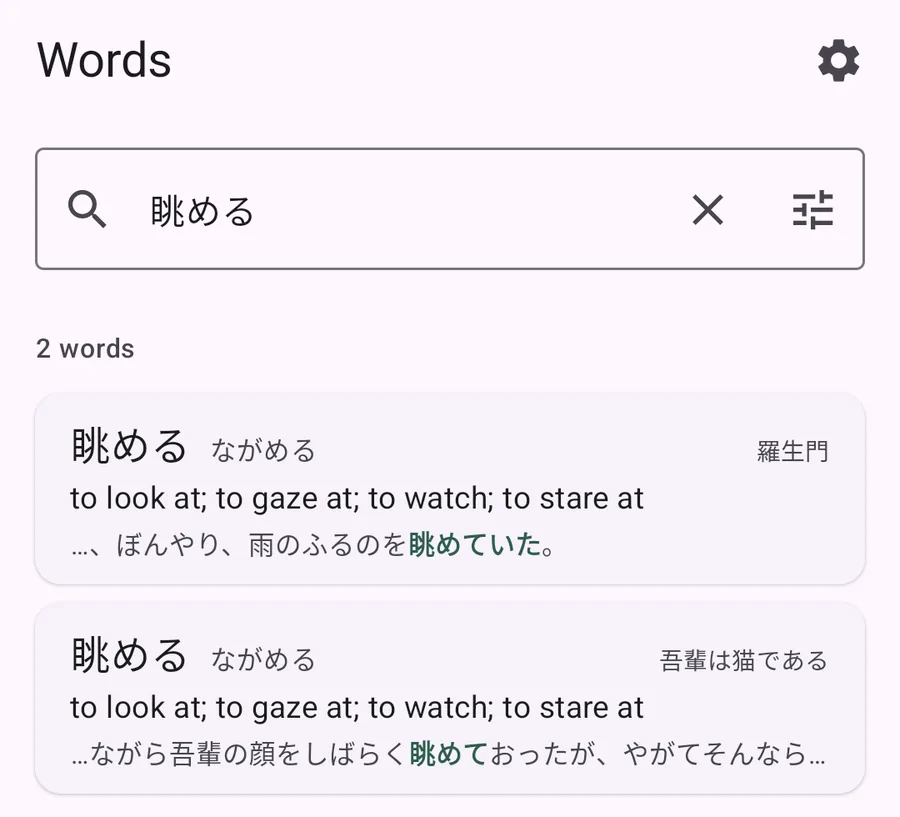
Seeing the scenes where you met a word is what makes it stick. The third time, 眺める isn't a new word you have to learn again; it is the word from the cat and the rain. Over a few books, more and more of the words you look up turn out to be ones you have met before.
Review in Anki
If you review with flashcards, Fusen can send your saved words to AnkiDroid. Open a collection's ⋮ menu and choose Send to Anki, or select words in Words and send just those. Each card has the sentence with the word in bold, the reading, the meaning, and the translation if you made one. Words already in Anki are skipped, so you can send a book's collection again after each reading session. The deck is set in Settings → Anki.
This is the core of what learners call sentence mining: collecting the sentences you met words in and reviewing them. The two work together. Anki schedules reviews so you don't forget; Fusen reminds you at the moment you meet the word again in a book.
Keep going
- Read a little every day. Fifteen minutes daily does more than two hours on Sunday, because the words are still fresh when they come back.
- Stay with an author. After one book, read another by the same writer, or the next volume in the series. Names, places and favourite words repeat, so the second book is noticeably easier.
- Don't start with the hardest book. If you dread opening it, put it aside for something easier. The book you want to read is the one you actually finish.
- Reread. A book you struggled through six months ago reads very differently now, and that is a good way to see how far you have come.
Questions
Do I need to learn kanji first?
No. Fusen shows the reading of every word you look up, and you will learn kanji as parts of words you have met in context. Many learners study kanji alongside reading; few wait until they know them all.
Does it work offline?
The dictionary does: after Fusen downloads it once (JMdict, about 11 MB), lookups and your notebook work without a connection. Fusen AI (translations, explanations and reading manga pages) needs one.
Does it cost anything?
The dictionary and the notebook are free, with no limits. Fusen AI uses credits, and a free Fusen account gets free credits every month. See credits and plans.
Can I send words to Anki?
Yes, through AnkiDroid on the same phone: see Review in Anki. If you sync AnkiDroid with AnkiWeb, the cards reach Anki on your computer too.