 fusen
fusenLook up words in raw manga
Text in a manga page is part of the picture, so a dictionary has nothing to select. Fusen's floating button reads the page on your screen with Fusen AI, then lists every speech bubble with its translation, ready for you to look up the words inside.
Tested with Fusen 1.0.5 (a development build) and 少年ジャンプ+ on Android 16. Updated .
Before you start
- Install Fusen and let it download the dictionary (JMdict, about 11 MB).
- Sign in to a free Fusen account (Settings → Account and sync). Reading a page uses Fusen AI, which runs on credits; a free account comes with a monthly allowance. Dictionary lookups don't use credits.
- Open the manga in the app you normally read it in. The button floats over any app: an official manga app, a browser, or the gallery or comic reader you keep your own files in.
Turn on the floating button
In Fusen, go to Settings → Behavior and turn on Floating button. You can also add the Lookup button tile to Quick Settings and turn it on from there.
The first time, Android opens Display over other apps. Allow it for Fusen and go back.
A small handle now sits at the edge of the screen. Drag it up or down, or to the other side, to keep it off the bubbles. To turn it off, drag it onto the × that appears at the bottom.
Read a page
With the manga page on screen, tap the button. Fusen's popup opens over the page; tap Read the screen. Or press and hold the button: Fusen reads the whole screen at once, without the popup or the frame.
The first time, Android asks whether to share your screen with Fusen. Choose Share screen. The permission lasts until you turn the button off, and the status bar shows that the screen is being shared until then.
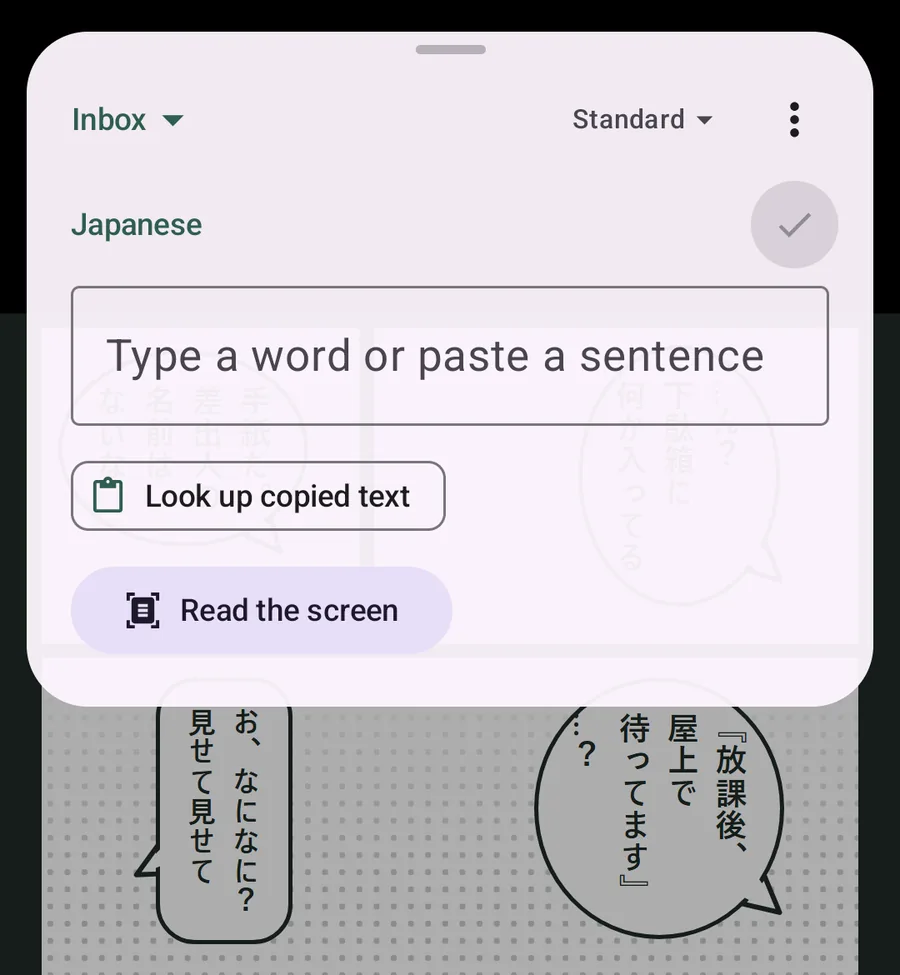
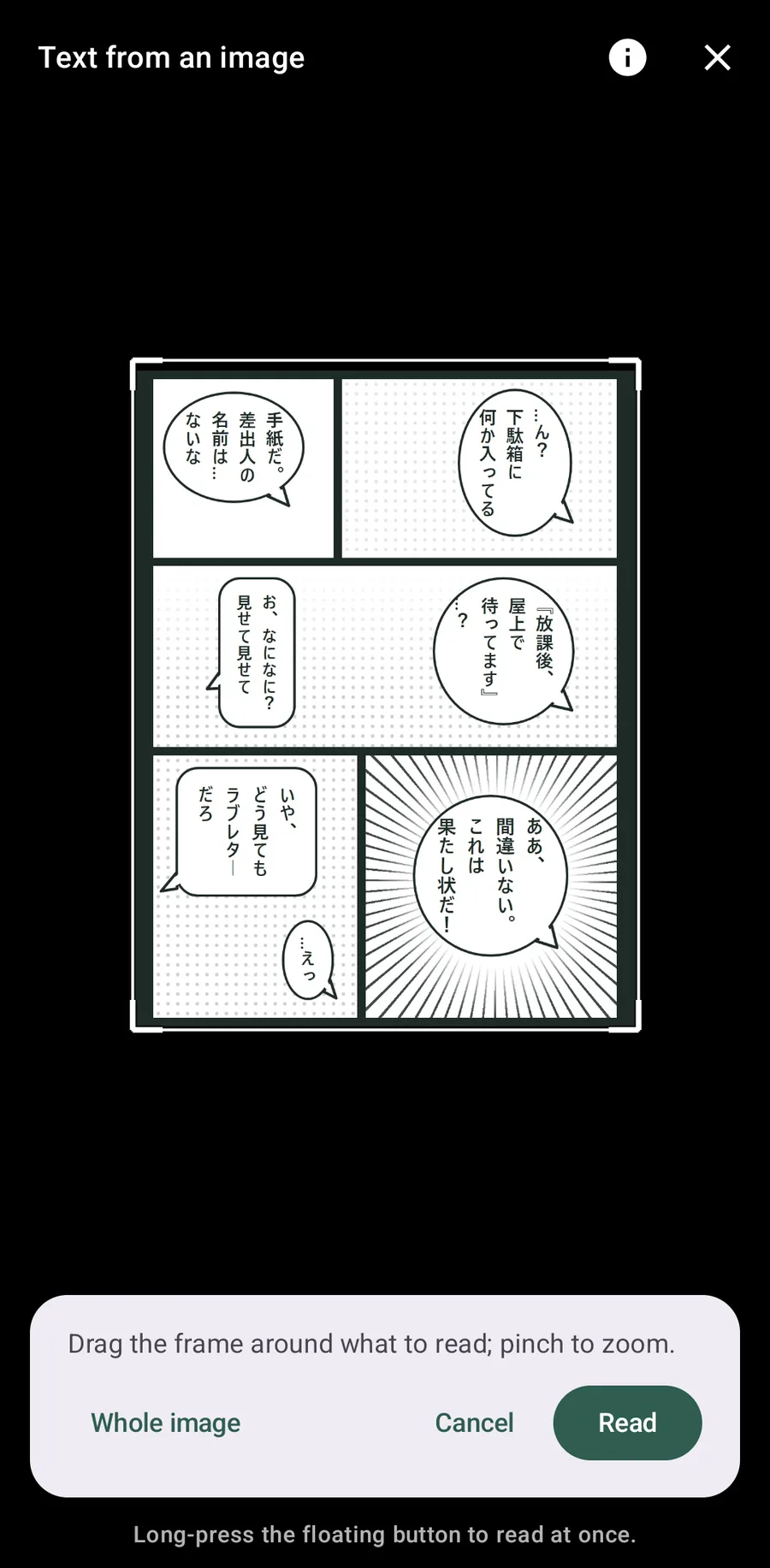
Fusen shows the screen it took, in a frame. Drag the frame's corners to the part you want read (one page of a spread, or the page without the status bar), or tap Whole image. Then tap Read.
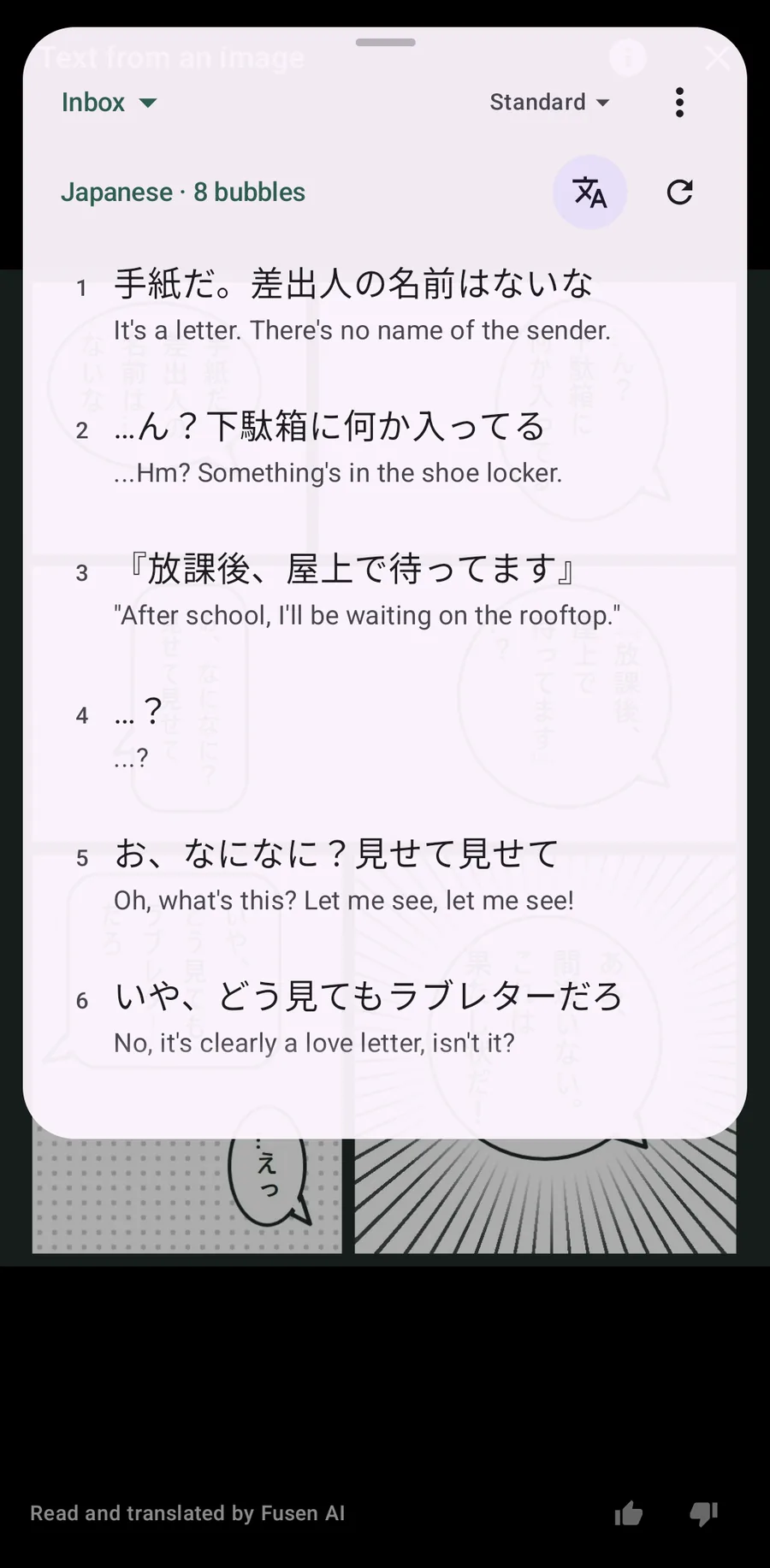
After a few seconds the popup lists the page's speech bubbles in reading order, under Japanese · 8 bubbles. The translate icon beside it shows each bubble's translation underneath, so you can read the whole page in one go.
Go through the bubbles and look up words
Tap a bubble to open it. Its text becomes the passage, with its translation below; ‹ 2 / 8 › at the top steps to the bubbles before and after, and the list icon goes back to the list.
Tap a word in the passage to see its dictionary entry, with the reading over the kanji. Conjugated forms are traced back: 寝てねえ finds 寝る. If Fusen AI misread a character, tap the pencil and correct it.
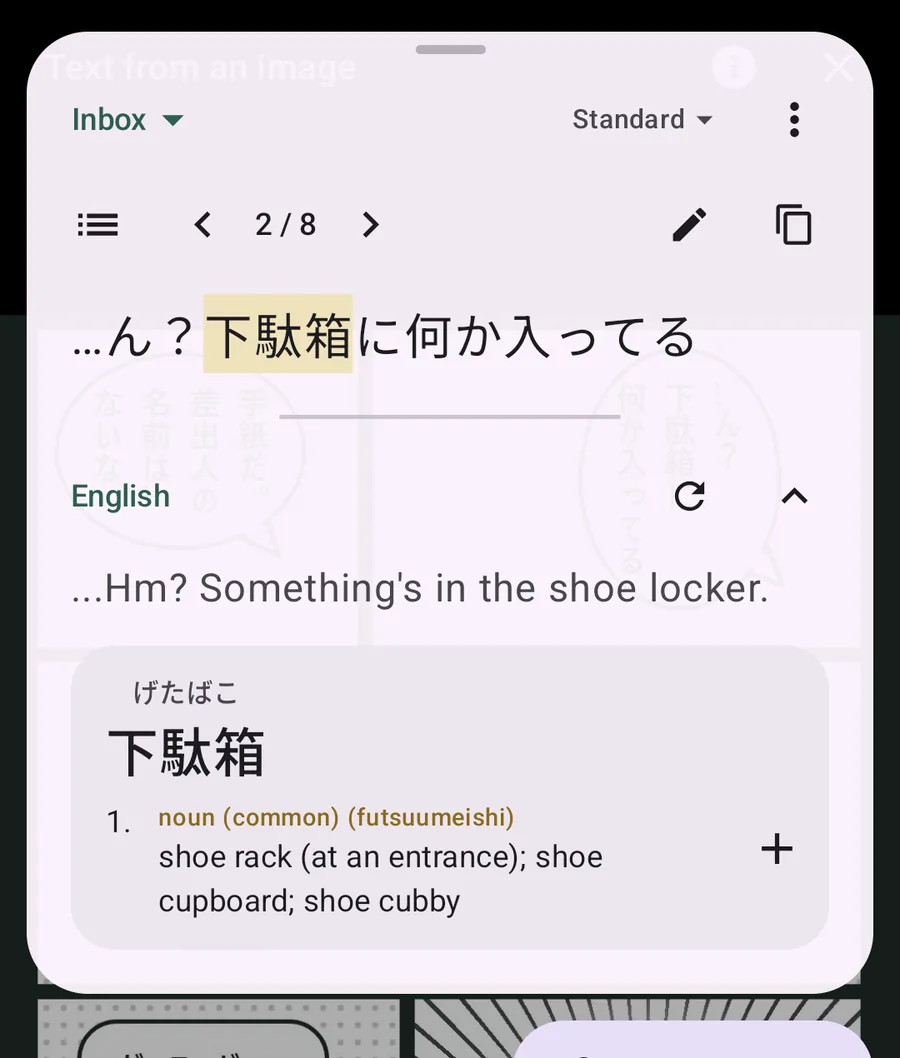
Tap + beside a meaning to save the word. Fusen keeps the bubble as its sentence and the page as its image, so when the word turns up again you can see the panel you met it in. Words saved from one page share the image.
Close the popup and the page stays on screen, with Show the text to bring the bubbles back. × at the top returns you to your manga app. Turn the page there and read the next one the same way.
What it costs, and what is sent
- One charge per page. Reading a page uses credits once; stepping through its bubbles, showing translations and looking words up don't. Reading the same page again soon is free, and a page with no text, or a read that fails, costs nothing. Read again (the circular arrow by the bubble count) reads the page afresh and is charged again. Prices are on the homepage, under credits.
- The image goes to Fusen's server. The page, or the part inside the frame, is sent to the Fusen server, and its AI provider reads and translates it, with the current collection's title and a few of its words for context. Fusen doesn't keep the image; the privacy policy lists the providers. A read only happens when you tap Read or hold the button.
- The whole screen is captured. The status bar's time and notifications are part of it. Frame the page alone if you'd rather not send them.
Which apps it works in
The button works over any app, because it reads what is on the screen rather than asking the app for text.
- 少年ジャンプ+ (Shueisha's free official app): tested. The button shows over its reader, and the captured page comes through normally.
- マガジンポケット (Kodansha): not tested. It couldn't load its catalogue on our test device outside Japan.
- Kindle and BOOK☆WALKER: not tested yet; both need accounts of their own.
- Your own files: a page opened in Google Photos was read normally. To the button, a comic reader for CBZ or PDF files, or a browser showing a publisher's free chapters, is one more app on the screen.
Some apps mark their pages as protected, and Android then gives screen captures from them as a black image. Fusen can't read those pages. A few apps also hide floating buttons over themselves.
For a word or two: Google Lens, then Fusen
If you only need one word from a page, you can get its text without Fusen AI. On phones with Google Lens or Circle to Search:
Open Lens on the page (or press and hold the home handle for Circle to Search), select the word or line, and tap Copy.
Tap the Fusen lookup tile in Quick Settings, or the floating button within a minute of copying. Fusen looks up the copied text at once.
This costs no credits, but you choose and copy each line yourself, Lens reads vertical and hand-lettered text less reliably than printed text, and there is no translation made with the whole page in view. We haven't tested this route on our test device (Lens asks for a Google account consent there).
Good to know
- Read one page at a time. On a two-page spread, frame one page: the bubbles come out in a clearer order and the text is larger.
- Pick bubbles from the list. The list follows manga reading order (right to left, top to bottom), but on a busy page two neighbouring bubbles can swap places.
- Furigana are left out. Fusen AI reads the base text; readings come from the dictionary.
- One collection per series. Tap the collection name at the top left of the popup (Inbox at first), choose New collection… and name it after the manga. Saved words go there, and Fusen AI gets the title as context.
- The popup covers the panel you're reading? Drag it down by its handle.
- The captured page is black? The app protects its pages, and Android lets no other app capture them. If the publisher also has the chapter on its website, try it there in a browser.